

Sources
The Sources tab manages where your definitions come from. You can import a local file or connect to a remote HTTP endpoint. Sources are saved in your browser's localStorage, so they persist across sessions.
The layout has two panes. The left pane shows an "Active" section at the top (the currently loaded source, imported file, or unsaved draft) and a "Sources" list below it with all your saved hosted sources. The right pane shows details for the selected item.
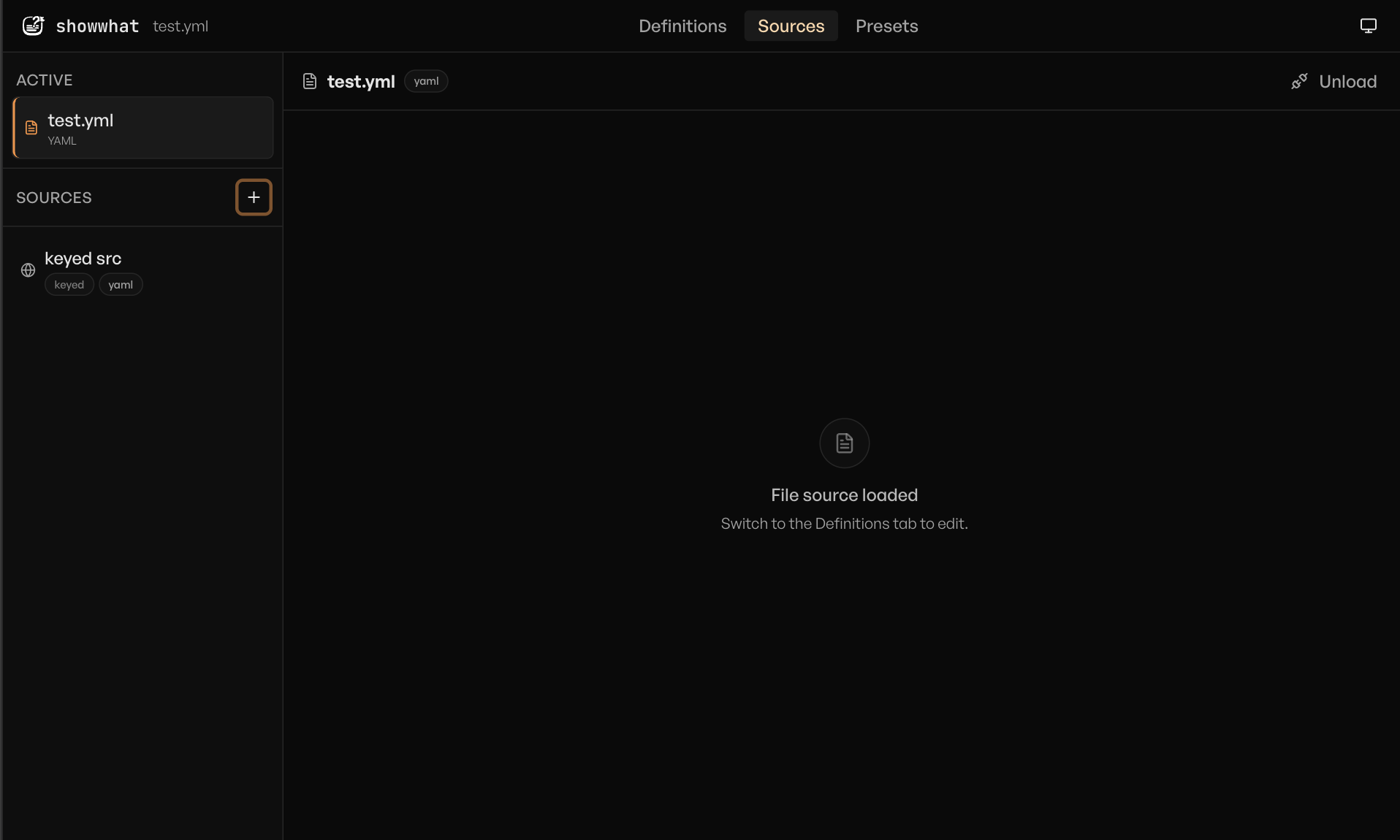
File source
Click the + button next to the "Sources" heading and choose From file. The app accepts .yaml, .yml, and .json files.
If you already have definitions loaded, a confirmation dialog warns that importing will replace them. When imported, the file appears in the "Active" section with the filename and format badge. Switch to the Definitions tab to start editing.
Hosted source
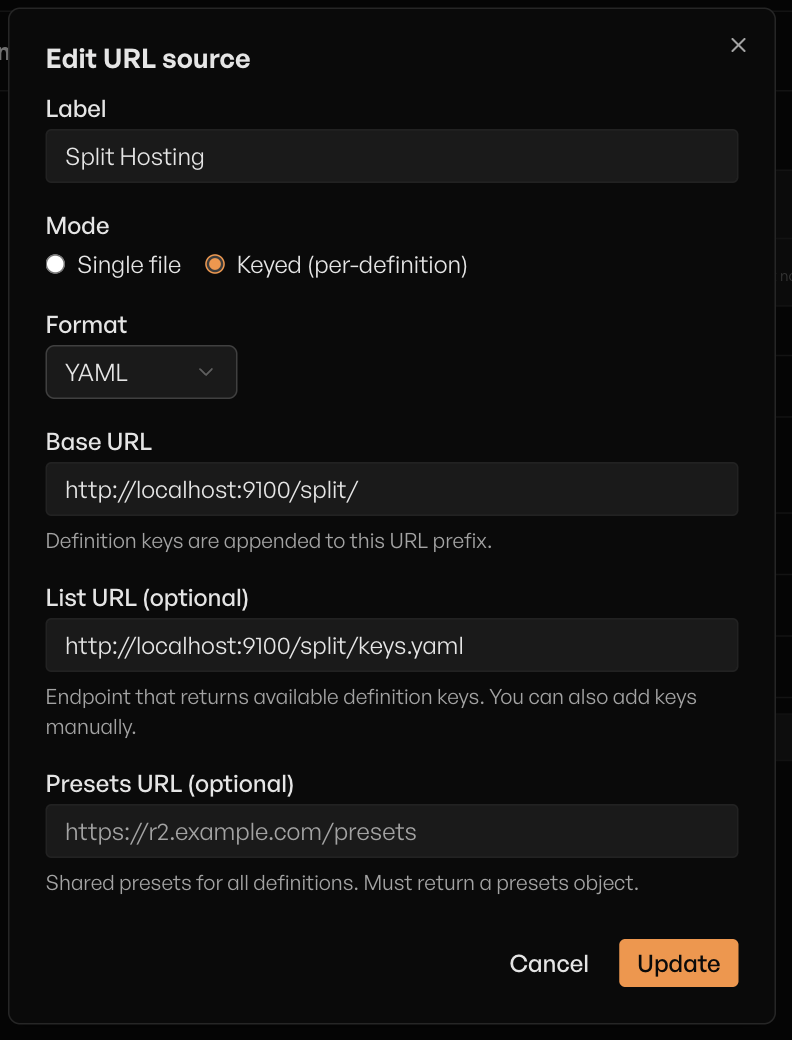
Click the + button and choose From URL. A dialog appears with the following fields:
| Field | Description |
|---|---|
| Label | A friendly name for this source (e.g. "Production", "Staging") |
| Mode | Bundled or Split (per-definition) |
| Format | YAML or JSON |
Bundled mode
A single URL returns a complete definitions file - the same format as a local YAML/JSON file.
You provide one field:
| Field | Description |
|---|---|
| URL | The full endpoint (e.g. https://r2.example.com/flags.yaml) |
When loaded, the app fetches the entire file, parses all definitions at once, and loads any embedded presets automatically.
Split mode
Each definition is fetched individually from its own URL. This works well with object storage (S3, R2) or APIs that serve definitions per-key.
| Field | Required | Description |
|---|---|---|
| Base URL | Yes | Definition keys are appended as path segments. For example, https://r2.example.com/defs/ plus key dark-mode fetches https://r2.example.com/defs/dark-mode. |
| List URL | No | Returns available definition keys, enabling automatic key discovery instead of manual entry. |
| Presets URL | No | Returns shared presets for all definitions. |
Source detail panel
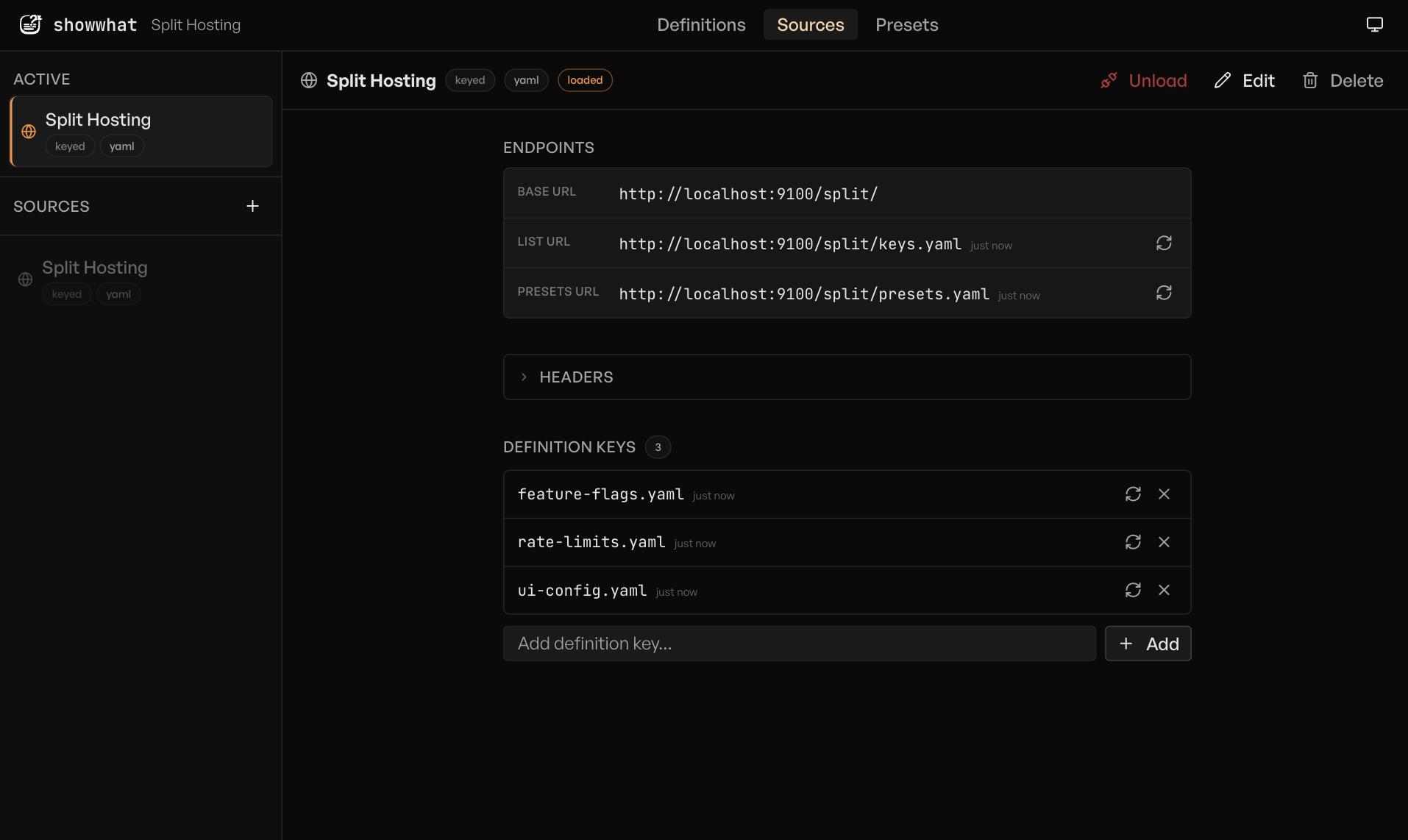
Once a hosted source is loaded, the right pane shows its detail panel. The contents vary by mode.
Bundled mode
The detail panel shows the configured URL with a reload button and a fetch timestamp (e.g. "2h ago"). Clicking reload fetches the latest definitions from the URL and replaces the current set.
A collapsible Custom headers section sits below.
Split mode
The detail panel for a split source has three sections.
Endpoints
| Endpoint | Details |
|---|---|
| Base URL | Shown for reference - keys are appended to this prefix. |
| List URL | Includes a reload button and timestamp. Reloading fetches the latest key list from the endpoint. |
| Presets URL | Includes a reload button and timestamp. Reloading fetches the latest shared presets. |
Definition keys
Each key in the list shows:
| Element | Description |
|---|---|
| Fetch timestamp | When the key was last loaded (e.g. "3m ago"). |
| Reload button | Re-fetches that individual definition. Disabled if the key has unsaved changes. |
| Remove button | Deletes the key from the list. |
You can add keys in two ways:
- Manually - type a key name in the text input at the bottom and click Add.
- From list endpoint - if a list URL is configured, click its reload button to populate the key list automatically.
Custom headers
A collapsible section for adding HTTP headers sent with every fetch request. Add key-value pairs using the inputs and click Add. Remove individual headers with the x button.
WARNING
Headers are stored in your browser's localStorage. Avoid storing long-lived secrets here. Use short-lived tokens or session-scoped credentials when possible.
Safeguards
The app enforces the following when fetching from remote sources:
| Safeguard | Value |
|---|---|
| Protocol | HTTPS required. HTTP allowed only for localhost and 127.0.0.1. |
| Response size | 5 MB maximum. |
| Timeout | 30 seconds per request. |
CORS
If you see a "Failed to fetch" error, your server likely isn't returning the right CORS headers. The browser requires the Access-Control-Allow-Origin response header to include the app's origin before it will allow the request.
This is a common issue with S3, R2, and similar object storage services - consult your provider's CORS configuration docs.
Loading and unloading
Only one source can be active at a time. Loading a source - whether by importing a file or connecting to a hosted endpoint - replaces whatever is currently active.
INFO
Loading a hosted source unloads any active file import, and vice versa. Unsaved changes to definitions are lost when switching sources. Always export or save your work before loading a different source.
For file sources, importing a file makes it the active source immediately. There is no separate load step.
For hosted sources, select a source in the left pane and click the Load button in the right pane. A confirmation dialog warns that loading replaces current definitions. Once loaded, a loaded badge appears next to the source name.
To disconnect a hosted source, click Unload in the detail panel action bar. You can also Edit (opens the source form dialog) or Delete (with confirmation) from the same bar.
Next steps
- Editing Definitions to work with the definitions you loaded
- Presets to define and manage condition presets
- Custom Data Sources for implementing your own server-side data source