

Getting Started
The showwhat configurator is a standalone web app for authoring and testing feature flag definitions. It runs entirely in your browser - there is no server. Your work is saved automatically to localStorage and can be exported as YAML or JSON at any time.
First launch
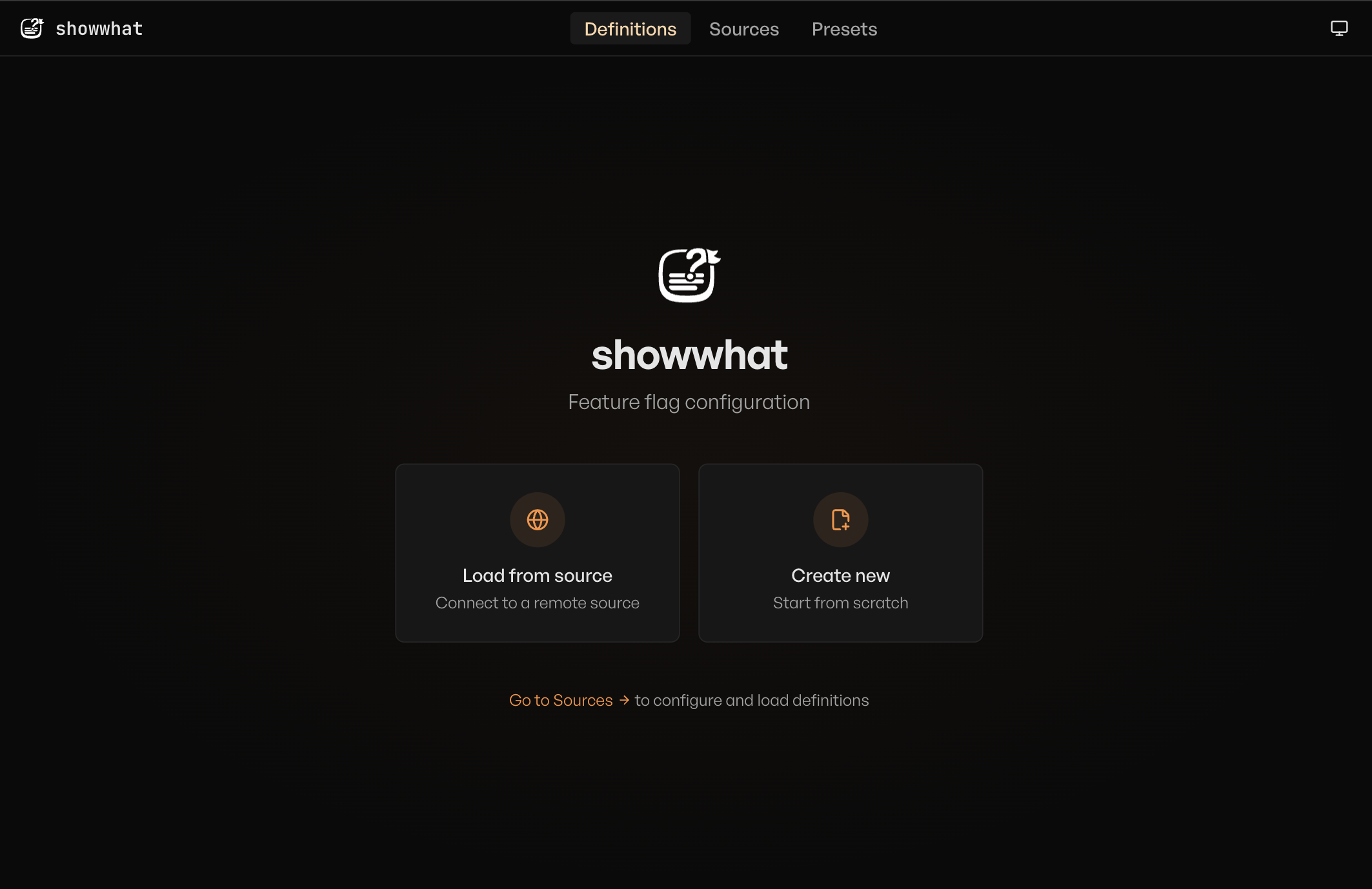
When you open the app for the first time, you see two options:
- Load from source - connect to a remote HTTP endpoint to pull in existing definitions. This takes you to the Sources tab.
- Create new - start with a blank definition and build from scratch.
You can also import a local file from the Sources tab.
The three tabs
The app is organized into three tabs, accessible from the toolbar:
Definitions - the visual editor where you create and configure definitions, build conditions, and preview resolved values. This is where you spend most of your time.
Sources - manage where your definitions come from. Import local files, connect to remote HTTP endpoints, and control the loading lifecycle.
Presets - define reusable condition shortcuts (like "tier" or "premium") and inspect presets loaded from sources.
Toolbar
The toolbar sits at the top of the screen. From left to right: the showwhat logo, the source label (shows the active source name or imported filename), the tab bar in the center, and a theme toggle that cycles between light, dark, and system modes.

Your first flag
Here is a quick walkthrough to get a feel for the editor. You can follow along in the live app.
- Click Create new on the empty state. A definition named
untitledappears in the sidebar. - Click the definition key heading in the editor and rename it to
maintenance_mode. - Click Add next to "Variations" to add your first variation.
- Expand the variation card and set the Value to
true. - Click Add condition inside the variation and choose Environment. Set the value to
staging. - Add a second variation with the value
false. Leave it with no conditions -- this is your default fallback. - Open the preview panel on the right. In the Context field, enter:json
{ "env": "staging" } - Click Resolve. You should see the result:
true, matching variation index 0. - Change the context to
{ "env": "prod" }and resolve again. Now it returnsfalse-- the default.
That's it. You have a working feature flag. The rest of the guide covers each step in depth:
- Editing Definitions - the full editing workflow
- Sources - loading definitions from files and remote endpoints
- Presets - reusable condition shortcuts