

Presets in the Configurator
The Presets tab lets you define reusable condition shortcuts and inspect presets loaded from sources. Instead of repeating type: string, key: tier across many definitions, you define a tier preset once and use type: tier everywhere.
For the full preset format, evaluation API, and schema reference, see the Presets concept page.
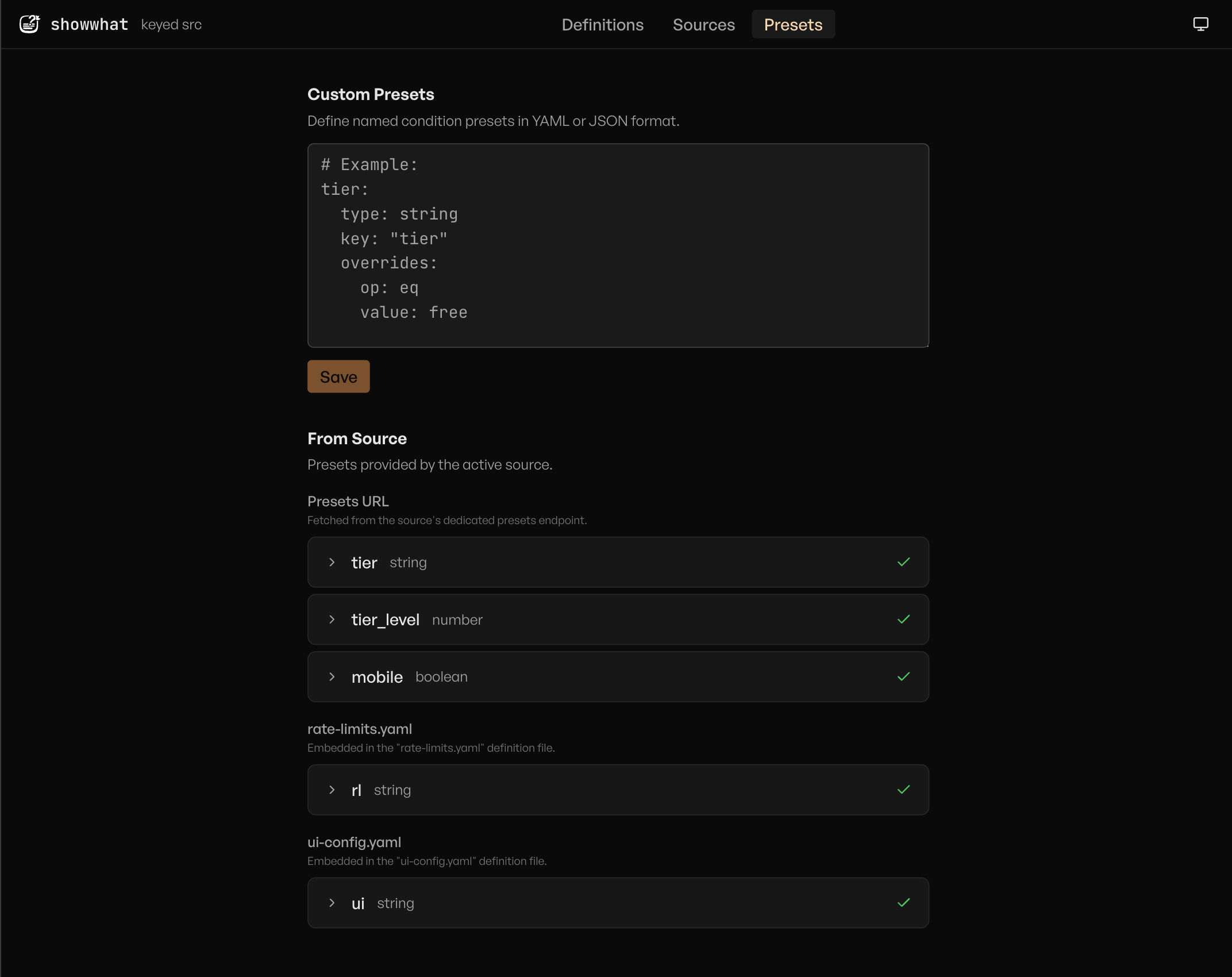
Custom presets editor
The top section of the Presets tab is a YAML/JSON textarea where you define your own presets. For example:
tier:
  type: string
  key: tier
  overrides:
    op: eq
premium:
  type: bool
  key: premium
Type your preset definitions and click Save. If the input is invalid, an error message appears inline. Custom presets are saved to localStorage and persist across sessions.
Once saved, your preset types appear in the "Add condition" dropdown on the Definitions tab. Preset conditions have their context key pre-filled and any overridden fields locked.
Preset viewer
Below the editor, a From Source section shows presets provided by the active source. Presets are grouped by where they came from:
- Presets URL - fetched from the source's dedicated presets endpoint (split mode only).
- Definition file - embedded in the loaded definition file.
- Per-definition groups - presets embedded in individual definition files (split mode only), shown under the definition key name.
Each preset row is expandable to reveal its type, key, and overrides. An amber icon indicates a source preset that shares the same name as one of your custom presets -- see merge order below.
If no source is loaded or the source has no presets, this section shows an empty state.
Merge order
When presets exist in multiple places, the Configurator merges them into a single set using the mergePresets helper from the showwhat package. This is the same function available to library users, so the merge behaviour is identical whether presets are resolved in your application or in the Configurator.
Bundled mode
When using a bundled-mode source or a file import, all definitions share one merged preset set. The PresetReader returns file/source presets as the base, and custom presets are applied as overrides:
mergePresets({ presets: reader, overrides: customPresets });
// equivalent to: { ...readerPresets, ...customPresets }
Custom presets (from the editor) take the highest priority, then source/file presets (from the reader).
Split mode
Each definition sees shared presets plus its own embedded presets. The Configurator calls mergePresets twice — once for shared presets, and once per definition key:
// Shared presets (all definitions)
const shared = await mergePresets({ presets: reader, overrides: customPresets });

// Per-definition presets (split mode only)
const forKey = await mergePresets({ key: "banner", presets: reader, overrides: customPresets });
When called with a key, the reader layers per-definition file presets on top of shared source presets before custom overrides are applied. Per-definition presets take the highest priority, followed by the shared set.
Avoiding collisions
If a custom preset has the same name as a source preset, the custom preset wins in the merged set. The amber icon in the preset viewer flags these collisions.
TIP
Give custom presets unique names that won't collide with source-provided presets. Or, if the source presets are authoritative, use the custom editor only for presets that the source doesn't provide.
For the full merge strategy and how to replicate this in your application code, see Preset Merge Strategy.
Next steps
- Presets for the format reference and evaluation
- Editing Definitions to use preset conditions in the editor
- Sources to load sources that include presets